
- Log in to the Webmail.
- Click on the email address name displayed in the top-right corner of the webmail and click on the “Password & Security” option from the listed menu.
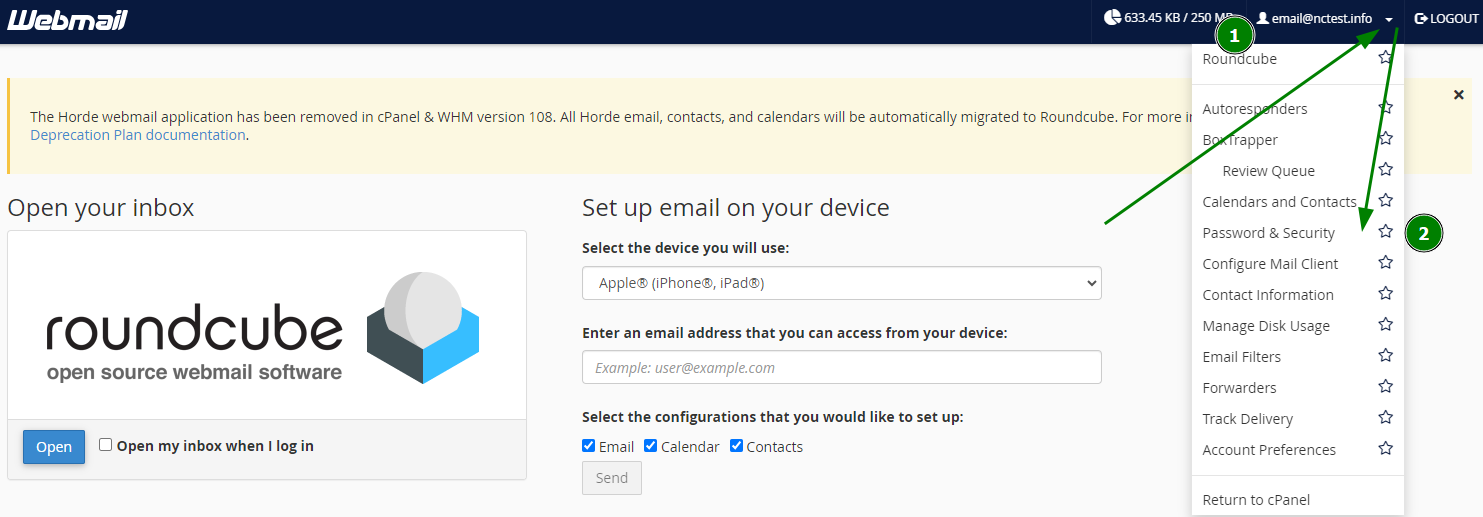
- If you can't see the above page (in step 2) and, for some reason, you see the below page, it means you have already logged in, and to reset your password as above stage you need to click the CPanel Logo, as shown by an arrow, to go to Webmail Home, as seen in step 2 above. There you can proceed to reset the password.

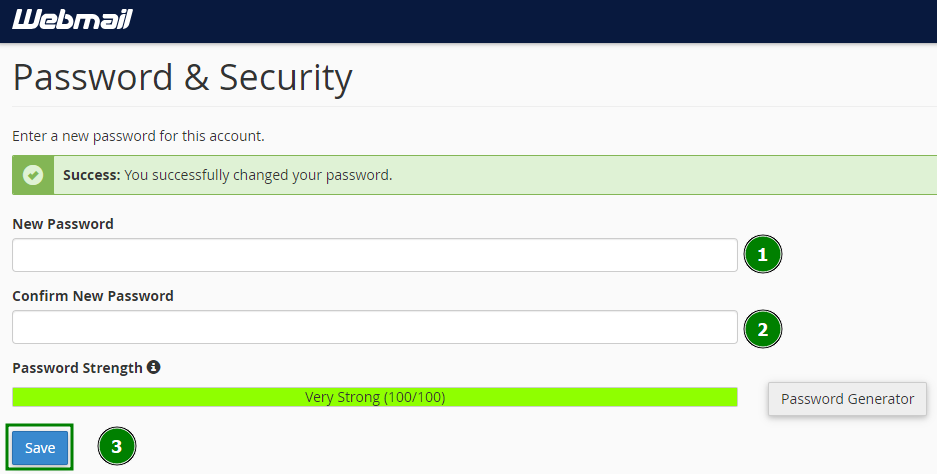
- Type the new password that you want to use for your email account in both boxes “New Password” and “Confirm New Password” and then click the button “Save” to reset your old password with the new password.
- Sucess!
- Log in to the Webmail.
Success!